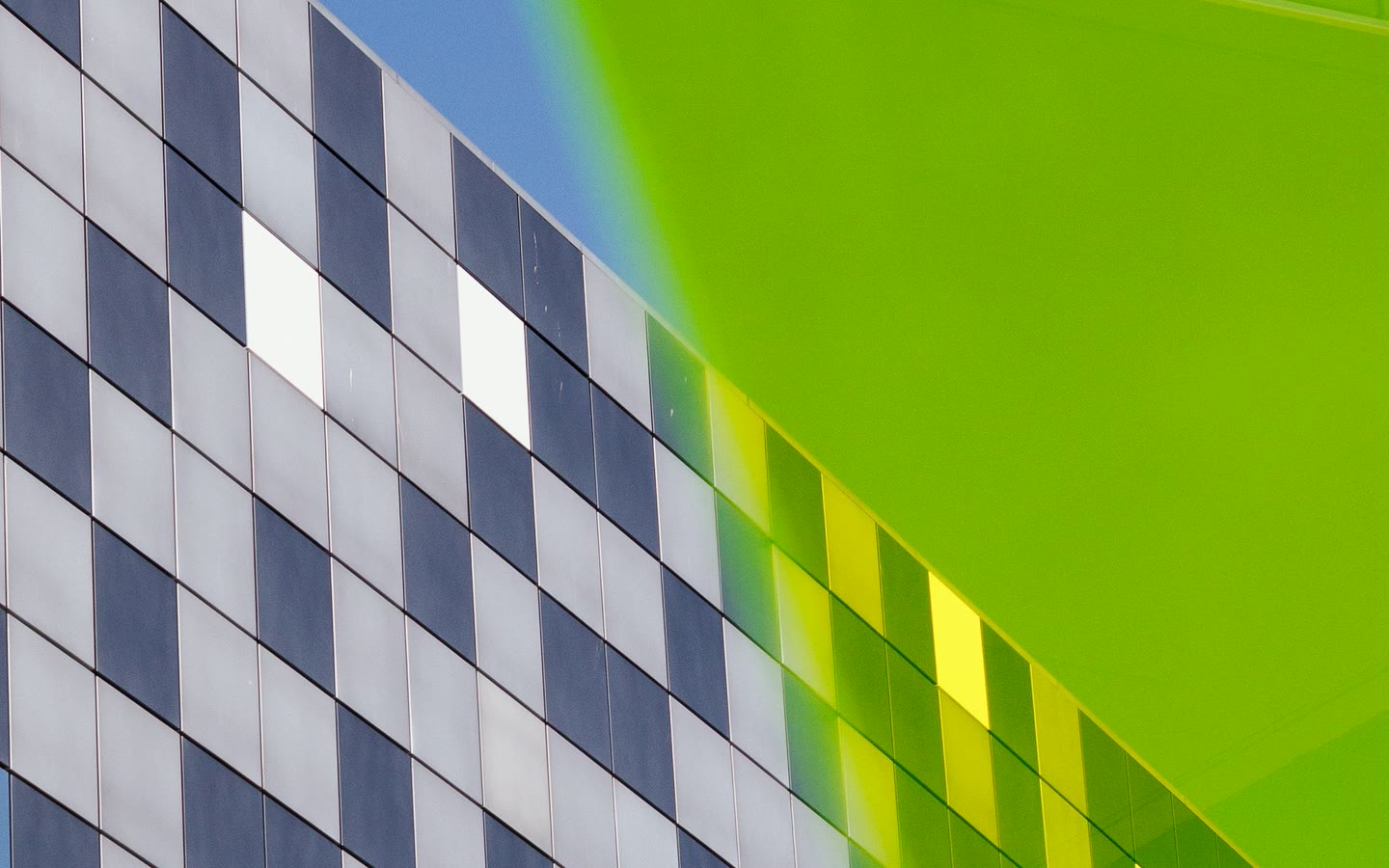
01Briefing principle
Name the change before you make it.
A useful creative brief separates the subject, setting, motion, camera, and mood. Clear direction makes every later decision easier to review.
Direct every frame
Turn a prompt or reference image into a polished 720p video with Gemini Omni Flash—from your browser.
Examples
Start with a single creative thought, then explore different moods, materials, and compositions while the original intent stays clear.
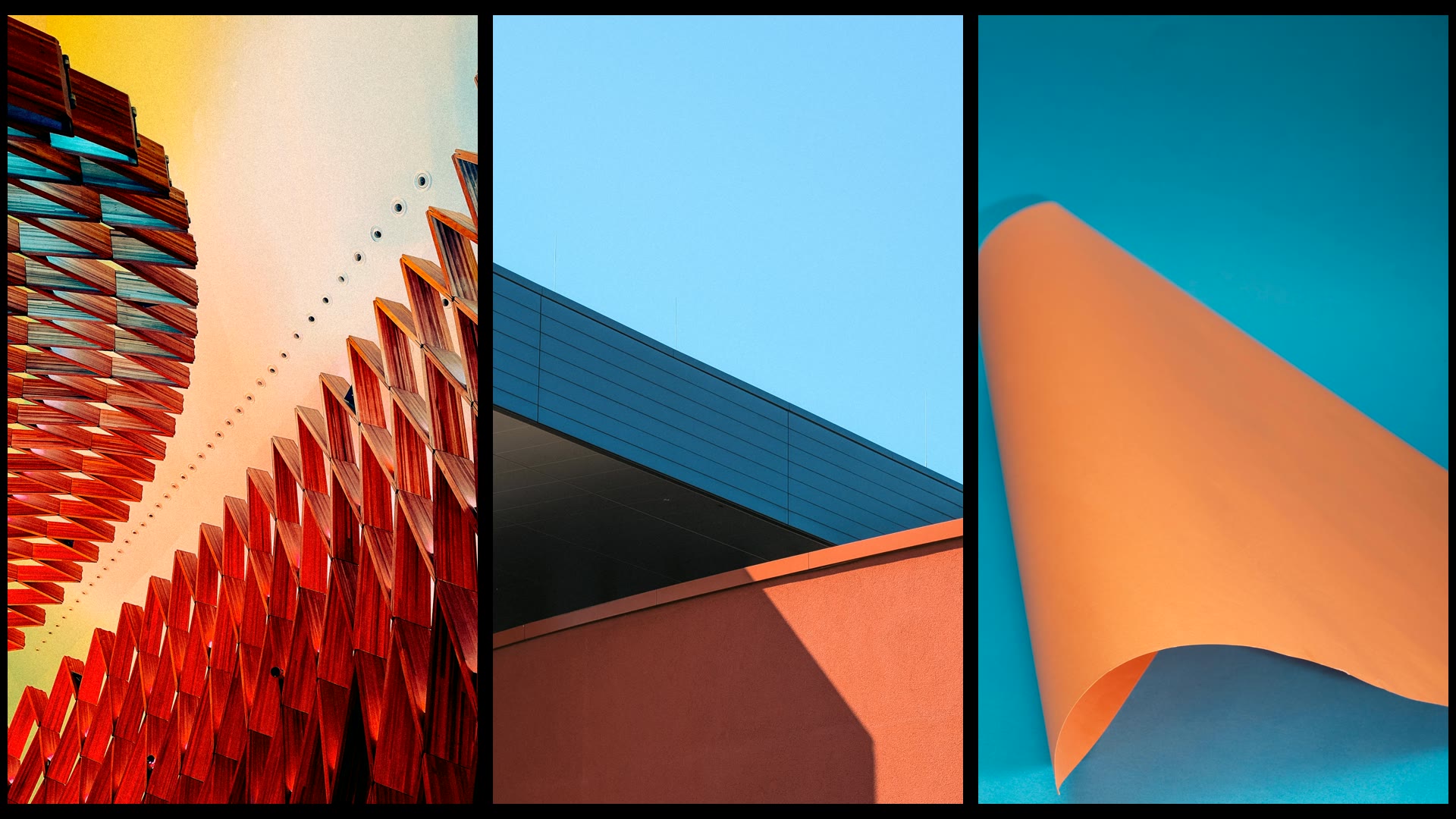
Starting point
A familiar object enters an unexpected world.
Creative pass
Reframe the mood, scale, and material.
Simple workflow
A focused three-step loop for turning a rough idea into something you can see, assess, and improve.
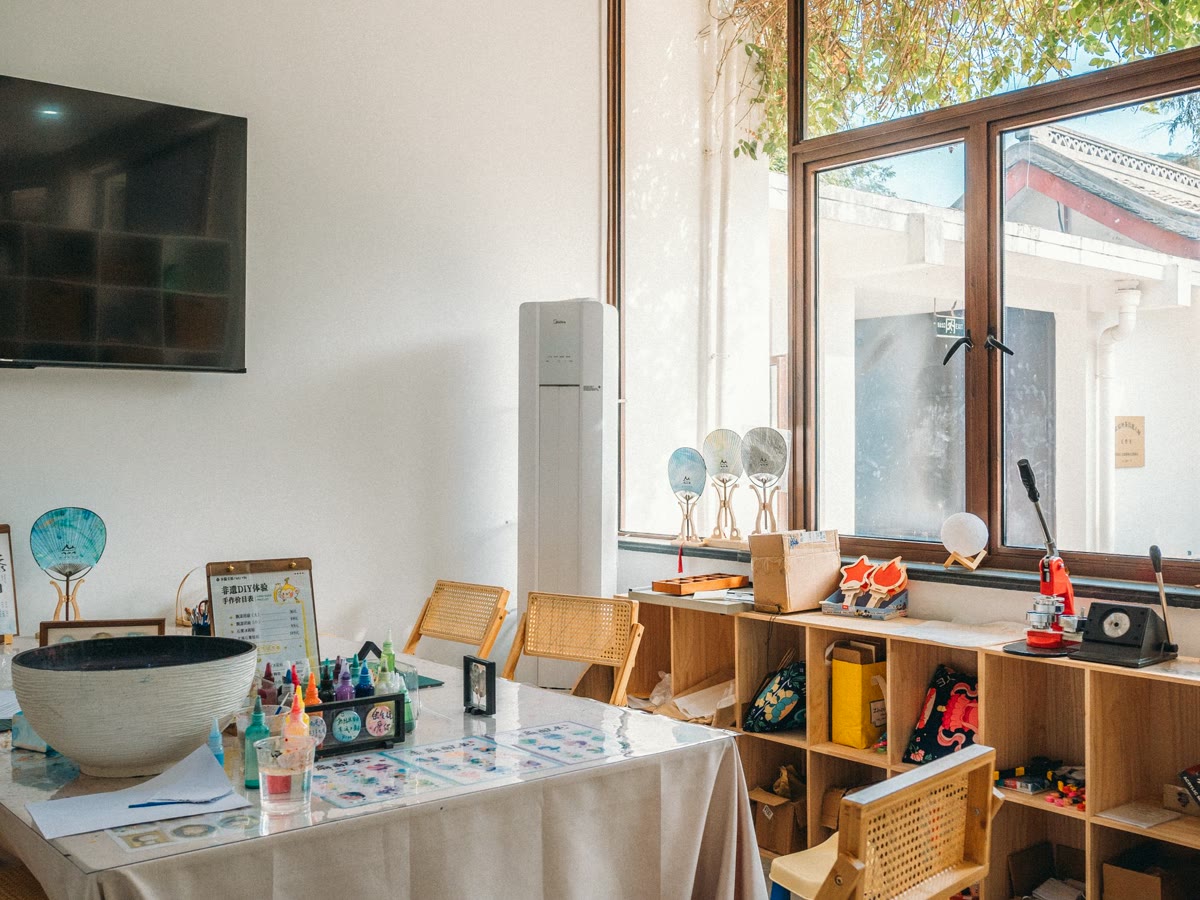
Bring in the image, subject, or visual cue that should anchor the result.
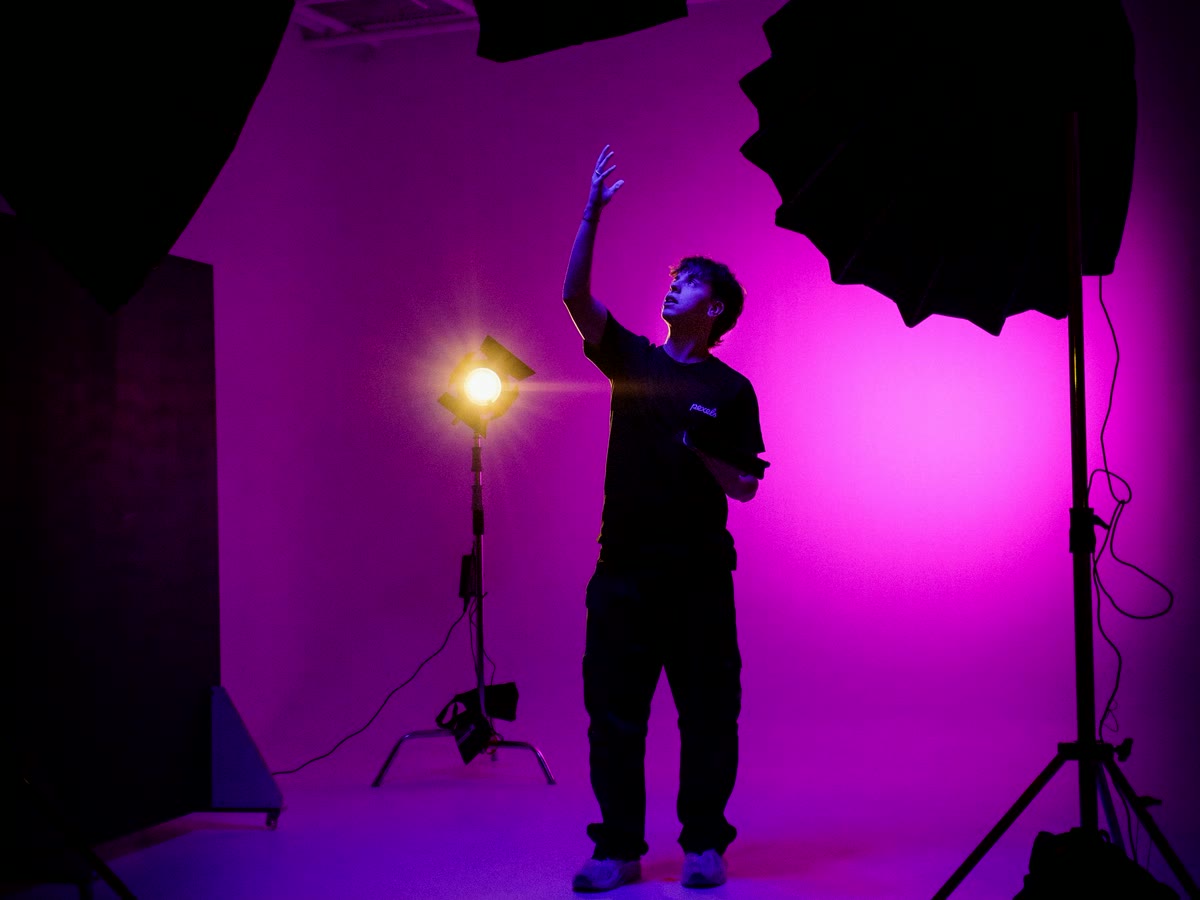
Describe the scene, movement, atmosphere, and sound in your own words.
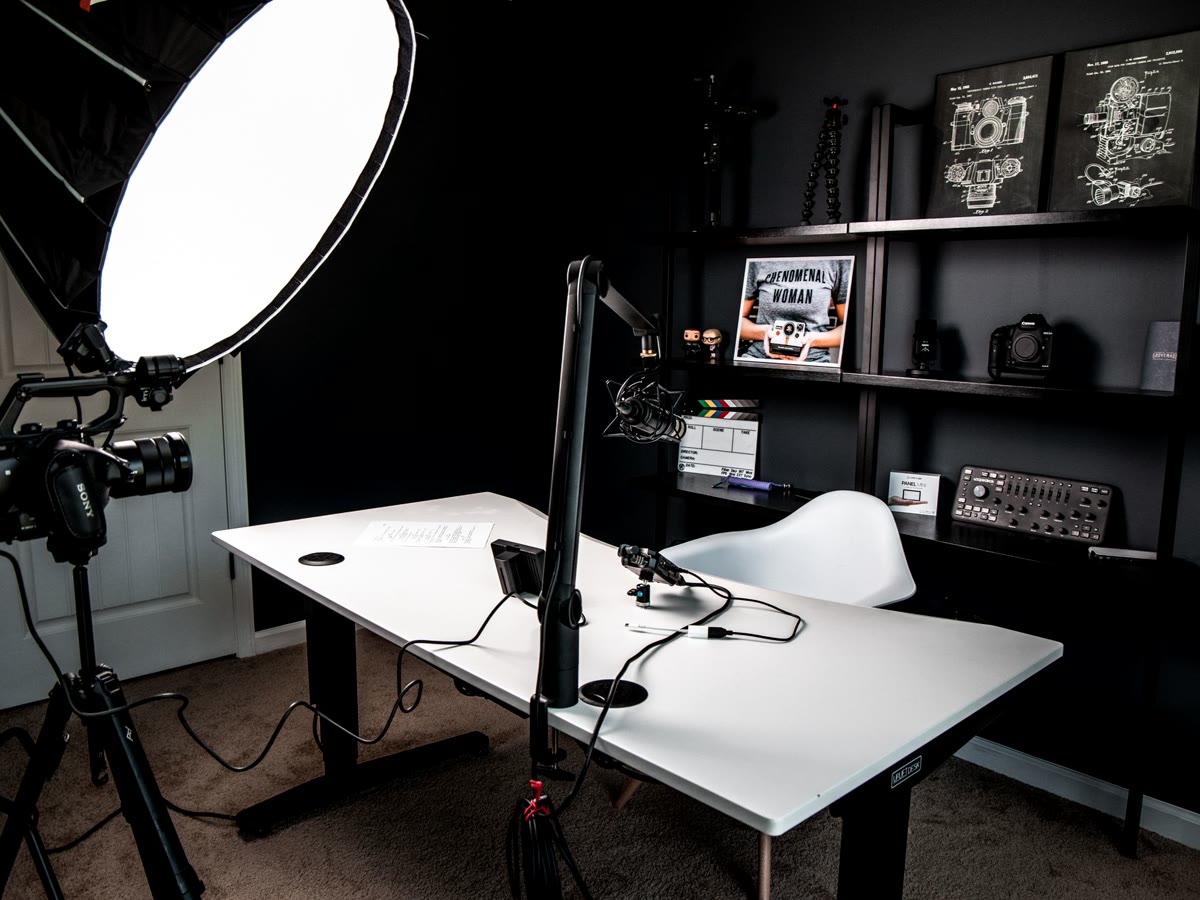
Watch the generated take, compare the details, and refine what matters.
A thoughtful video workflow
These edited, licensed stills illustrate the creative principles behind the OmniVideo workflow. They are visual references, not model output or performance benchmarks.
A useful creative brief separates the subject, setting, motion, camera, and mood. Clear direction makes every later decision easier to review.

Use a reference for a specific reason: color, framing, wardrobe, texture, or atmosphere. That keeps feedback concrete instead of subjective.
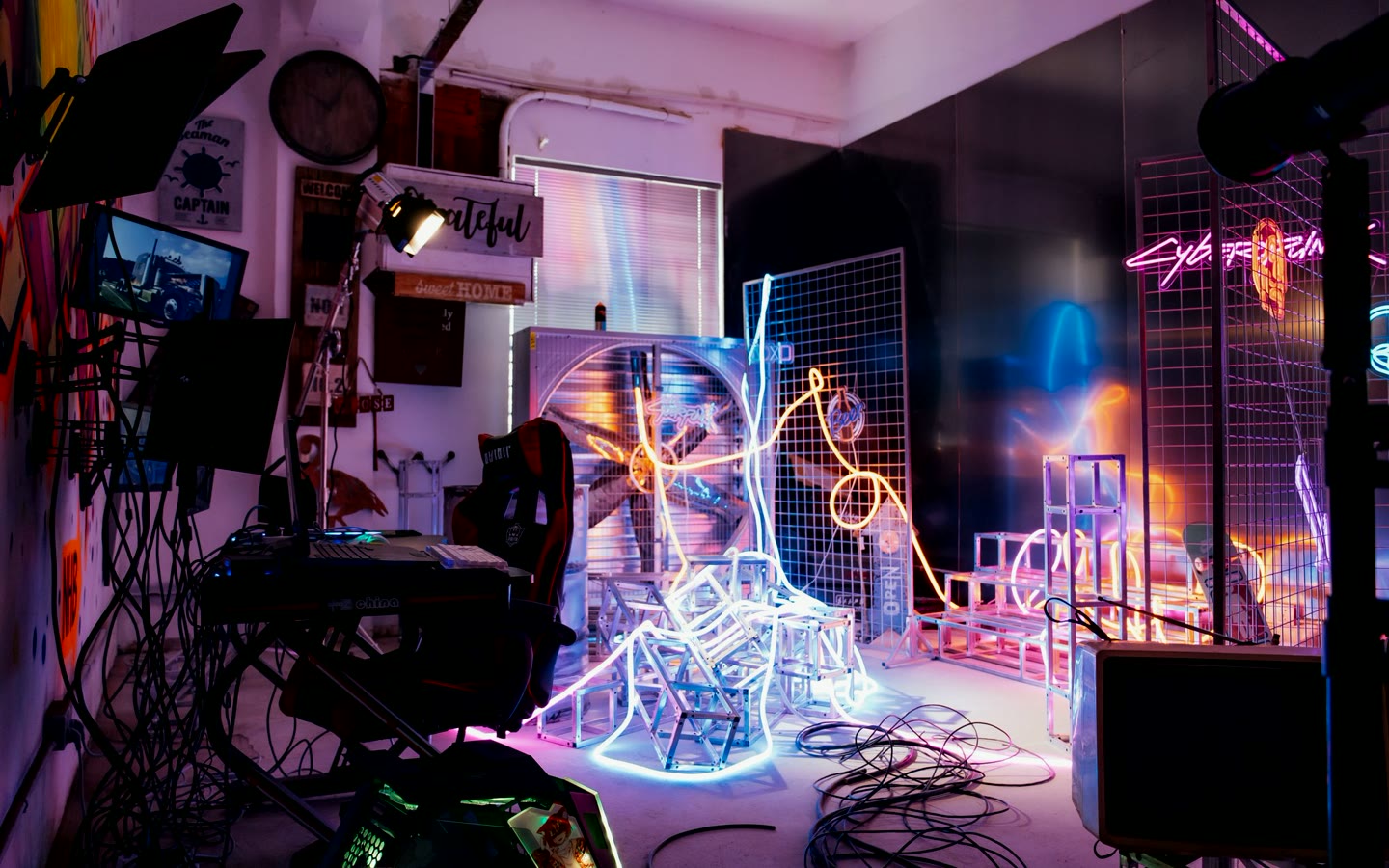
A strong still can hide continuity problems. Evaluate the full idea through composition, pacing, subject clarity, and the intended viewing context.
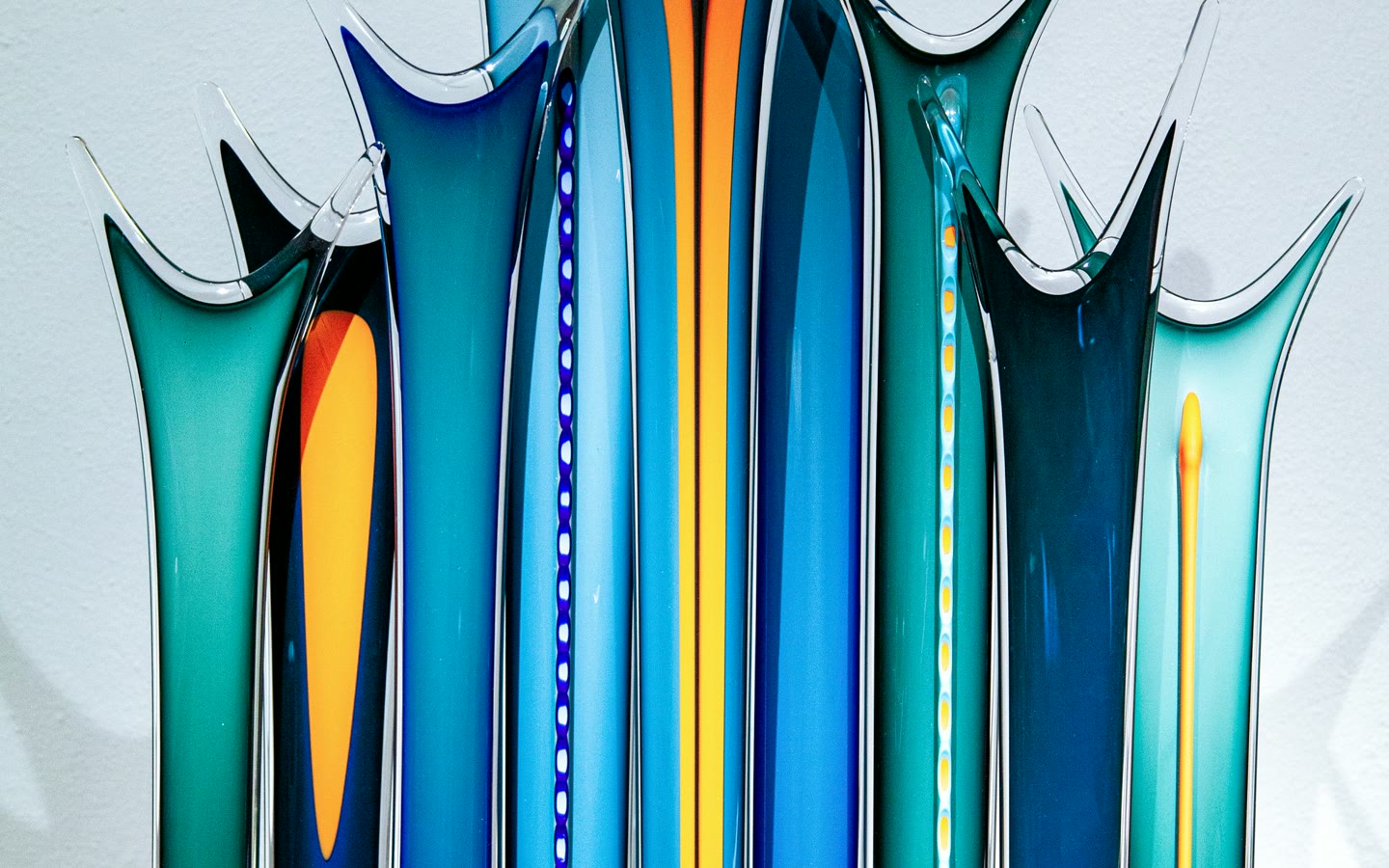
Change one meaningful direction at a time. Comparing a warmer mood, a wider camera, or a quieter scene is more useful than random alternatives.

Only use footage and references you are allowed to work with. Record where assets came from and keep approvals close to the project.

Concept stills communicate direction; they are not proof of model output or performance. Honest labels make early creative review more useful.
Direction, made visible
Browse four edited, licensed stills and the direction notes behind them. These examples demonstrate briefing structure, not generated results.

Keep the subject clear. Place the scene in a quiet, tactile environment with natural depth.
Direction 01
Define the subject and its world. Begin with what must remain recognizable, then describe the location, time, and atmosphere around it.
Ways to use the workspace
OmniVideo is being shaped around practical creative workflows: explore an idea, make the direction visible, and decide what is worth developing.
Explore several treatments from one brief, compare the strongest direction, and carry the chosen idea into pre-production.
Test motion, material, setting, and pace before committing a full production team to one execution.
Translate written beats into visual references that help a team discuss framing, rhythm, and tone together.
Define the visual rules once, then explore fresh scenes without losing the recognizable shape of the series.
These are example workflows, not customer testimonials or promises of a particular output. Results depend on the brief, source assets, model access, and production choices.
Start monthly or save 30% with annual billing. Plan checkout is opening soon; the AI Video Studio interface is available after sign-in.
For individuals
For individual creators exploring prompt and reference-image video generation.
Billed monthly
For professionals
For professionals who expect to generate more often as paid plans open.
Billed monthly
For higher volume
For higher-volume production workflows that need launch support.
Billed monthly
Plan preview only. Opening the studio does not start a subscription or charge your card.
Open AI Video studioThe studio interface is available; generation still depends on configured API access and preview-model availability. Here is what that means before you create.
Gemini Omni Flash is described by Google as a preview model for conversational video generation and editing. Preview details can change before general availability, including capabilities, limits, naming, and regional support. Google’s current model documentation is the authoritative source for availability.
No. OmniVideo is an independent product with no Google affiliation, sponsorship, or endorsement. “Gemini Omni Flash” identifies the model used for video generation.
After you sign in, OmniVideo sends your prompt and optional reference image through protected server-side generation infrastructure. Access credentials remain server-side, and completed videos are copied promptly into the private OmniVideo workspace for delivery.
Anyone with an OmniVideo account can open the studio and request a generation, subject to the current five-videos-per-24-hours launch limit. Account and safety requirements are shown when they apply. Gemini preview capacity, supported regions, safety checks, and provider availability can still affect a request.
Launch-plan pricing is $19, $39, or $99 per month. Annual billing is 30% lower, equivalent to $13.30, $27.30, or $69.30 per month when billed yearly. Checkout is not open yet, and opening the studio does not purchase a plan or charge your card.
Commercial-use rights depend on the terms that apply when you generate the material, including OmniVideo terms, the model provider’s terms, and any rights attached to your source assets. You remain responsible for permissions, releases, trademarks, copyright, and other third-party rights. This page is not legal advice.
Use only material you own or are authorized to use. You are responsible for permissions involving people, locations, music, brands, copyrighted works, and other third-party rights. The studio shows its currently supported image formats and upload limit before you submit a reference.
Yes. Gemini Omni Flash remains a preview model. Model behavior, output limits, capacity, safety controls, supported regions, access terms, and infrastructure availability can change.
AI Video Studio
Start with a prompt, add a reference image if you have one, and generate a landscape or portrait MP4 with Gemini Omni Flash.
Create AI video